
Already tracking hours in a spreadsheet? Import it instead of typing everything again. Nothing is saved until you check it and click Import.
1. Upload your file
On Activity Logs, click Import, then Import spreadsheet. Drop your file in the box and click Start import. CSV and Excel files up to 10 MB work.
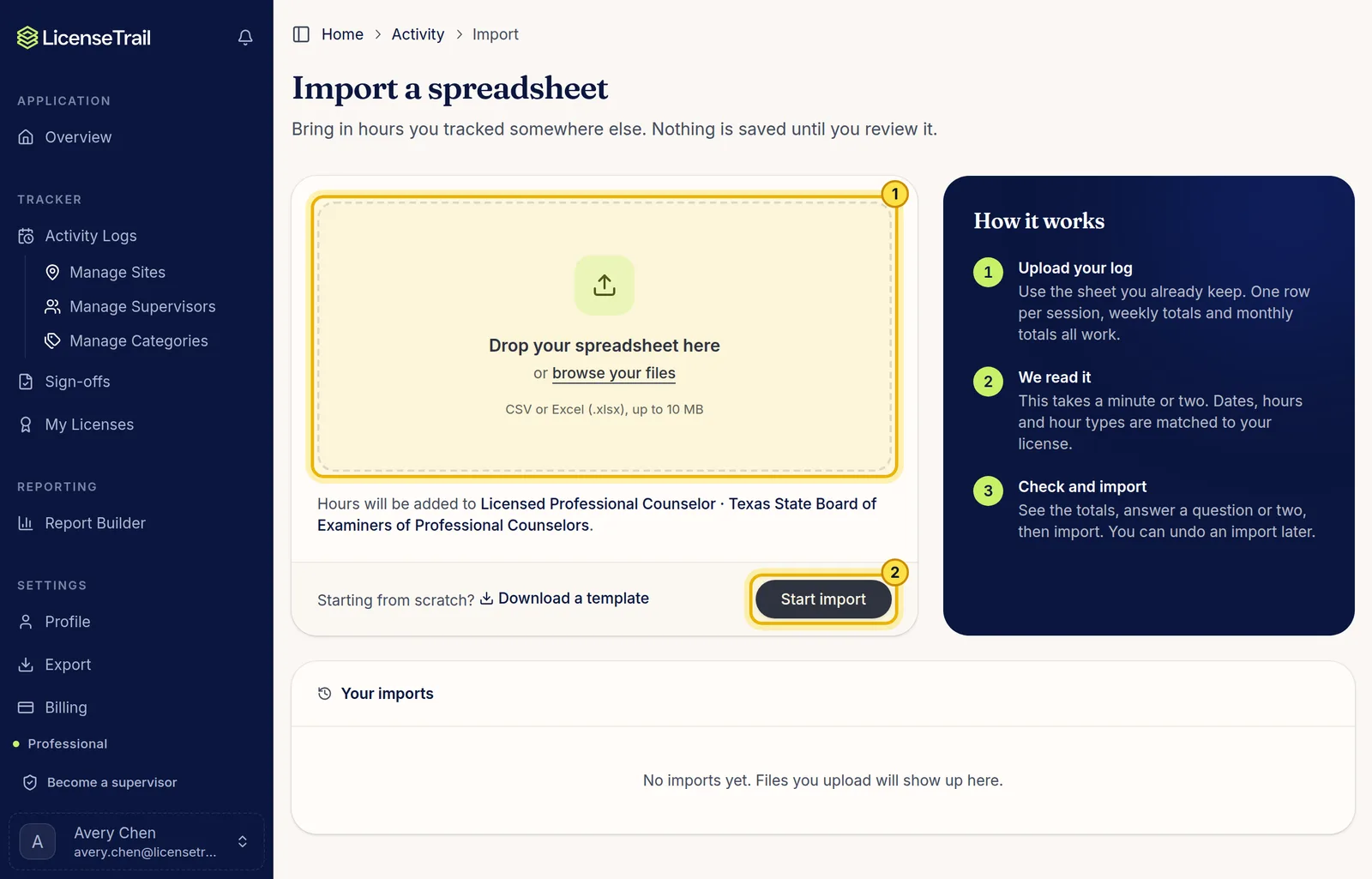
It works with the sheet you already keep, whatever its layout: one row per session or per day, hours split into a column for each kind, weekly or monthly totals, or several tabs (like sessions on one tab and supervision on another). Starting from scratch? Click Download a template.
2. Check and import
Reading your file takes about a minute. You'll then see your totals and a preview of the hours we found. Answer any questions, like what kind of hours a column holds (each one lists the sessions it covers), and click Import.
Good to know
- If your file adds up its own hours (a totals row or a SUM cell), we check our reading against it and show you whether they match.
- Something look off? Click Read the file again and tell us what's wrong. We read the whole file again with your note in mind.
- Weekly or monthly totals are spread evenly across the days in that period.
- If some rows can't be read, we show you which ones before you import.
- Your past imports are listed under Your imports, where you can undo one later.
- Using Google Sheets? Click File, then Download, and pick CSV or Excel.
- On the free plan, imported logs count toward the 20-log limit.