
Each log goes to one supervisor, and that person is the one who can sign it off. If hours ended up under the wrong person, or someone else should sign a group of your hours, you can move them in a few clicks instead of editing each log.
1. Add the new supervisor
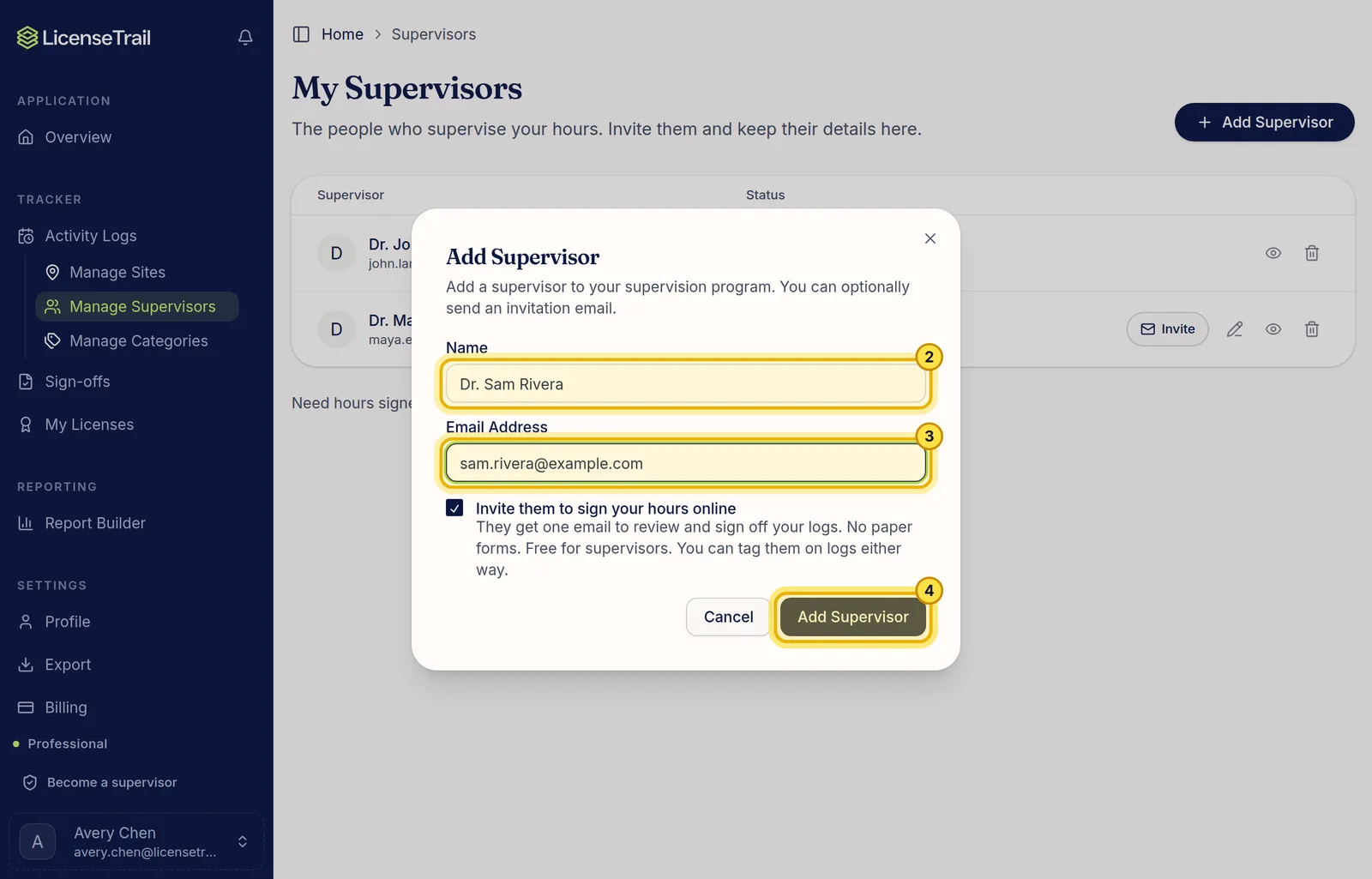
Skip this if they're already on your list. Otherwise, in the sidebar, click Manage Supervisors, then Add Supervisor, and enter their name and email. Leave Invite them to sign your hours online checked if you want them to sign in LicenseTrail, or uncheck it to only tag them on your logs.
2. Filter to the logs you want to move
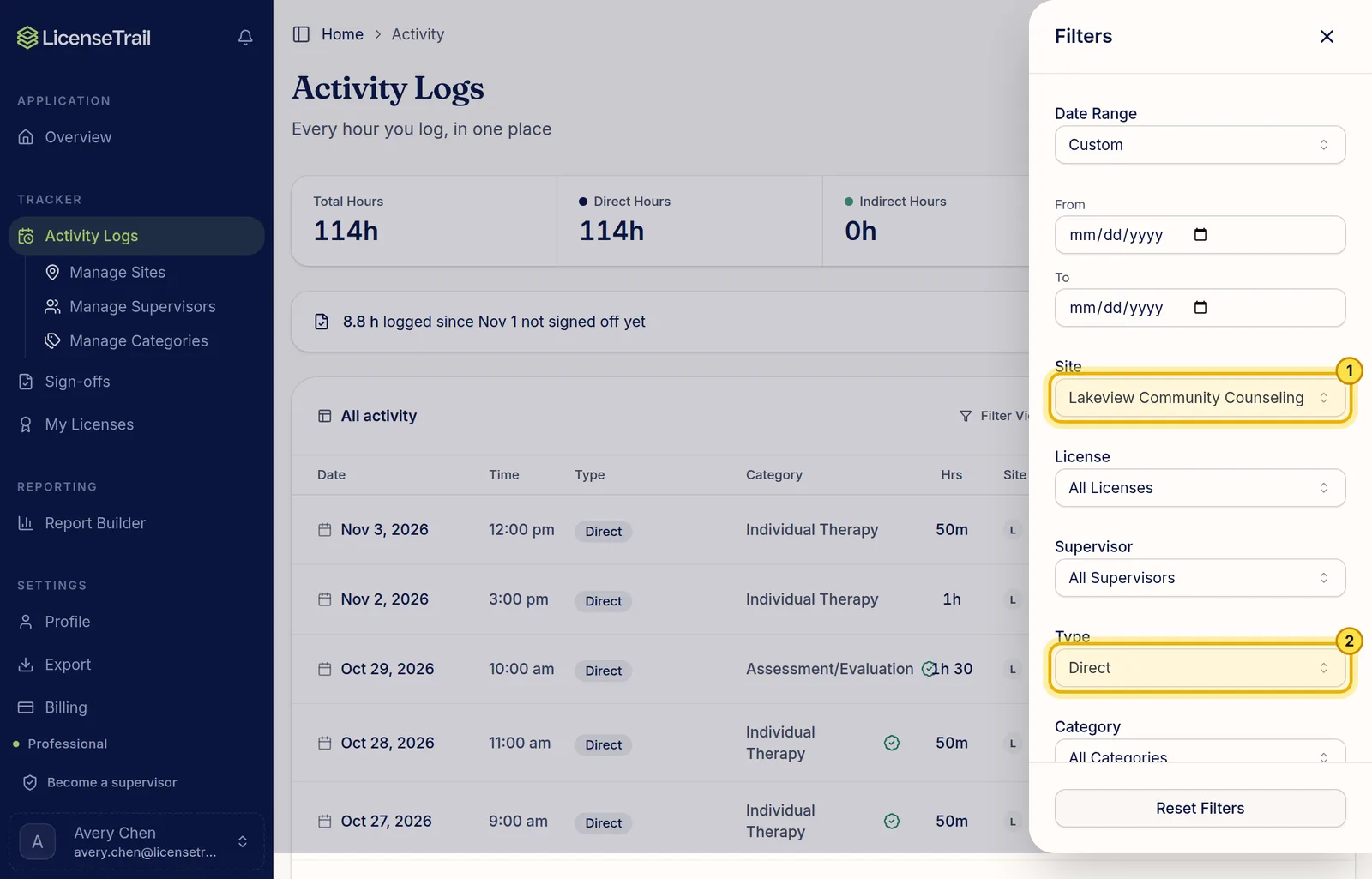
On Activity Logs, click Filter View. Narrow the list to the logs you want to move, for example by site, type of hours, dates or current supervisor.
3. Change the supervisor
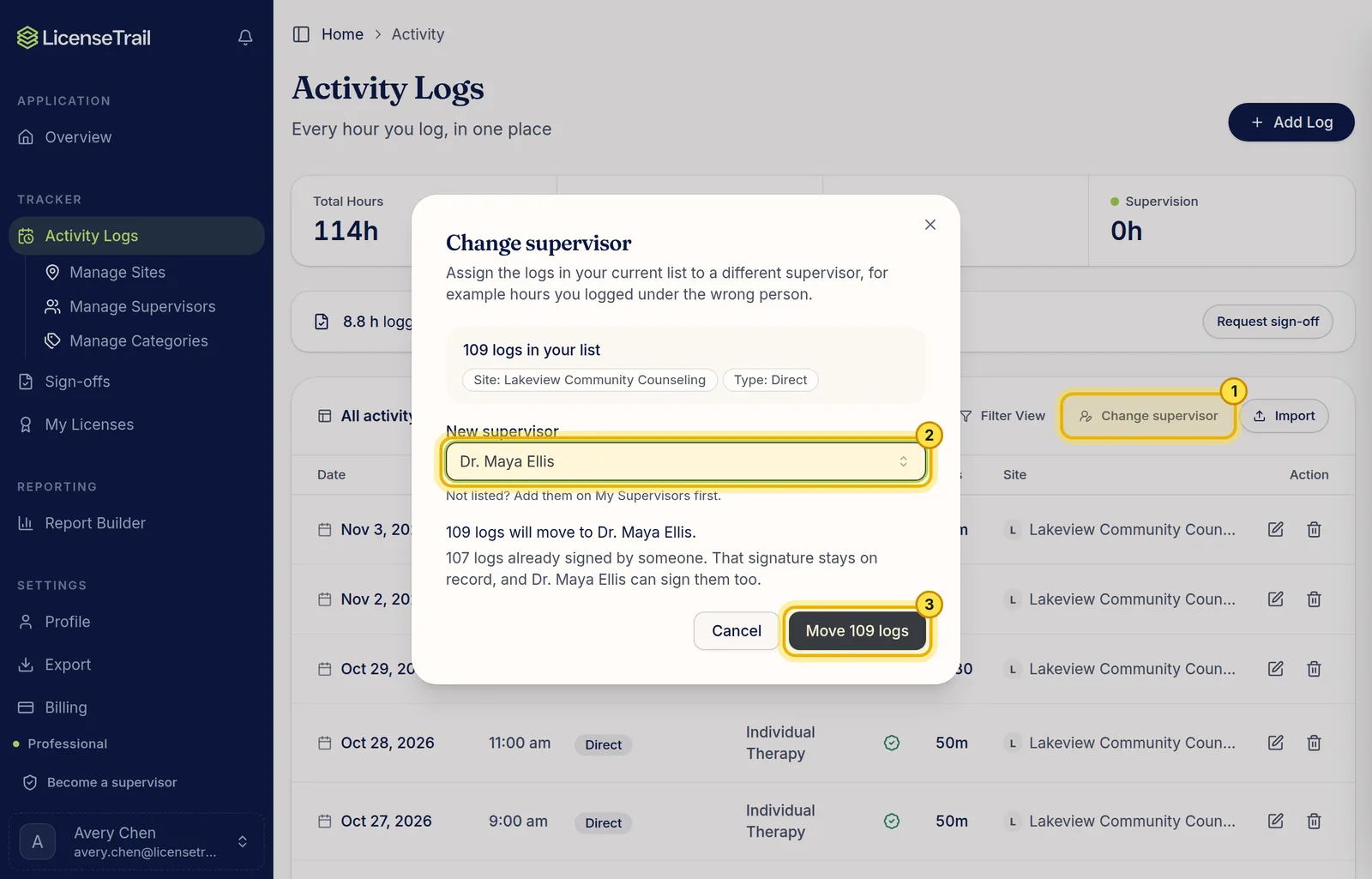
Click Change supervisor, pick the new supervisor, and click Move. The dialog shows your filters and how many logs will move, so you can check before you confirm.
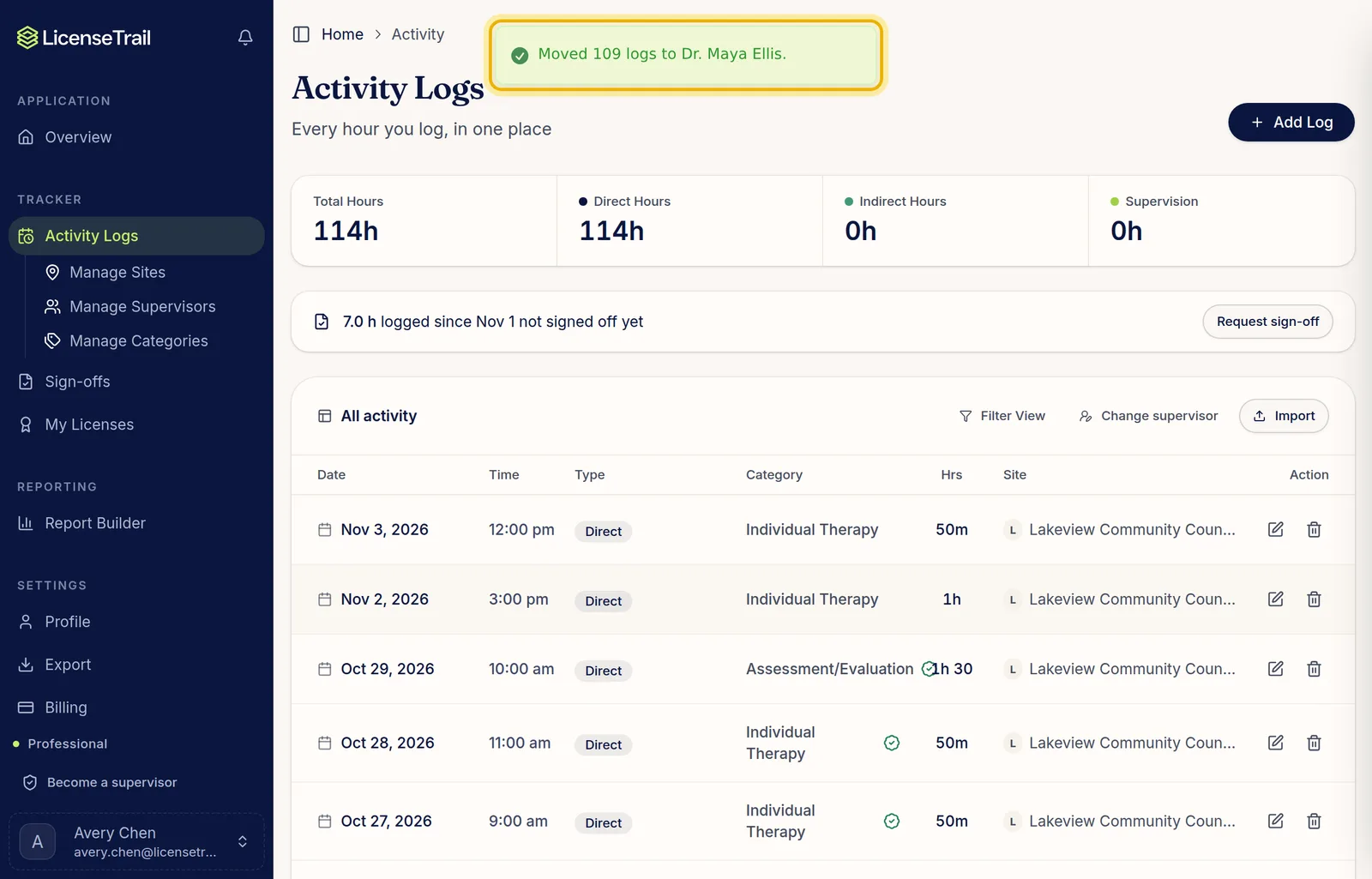
You'll see a confirmation when it's done. To move another group, change the filters and do it again.
Good to know
- Only the logs in your filtered list change. Everything else stays as it is.
- Logs that were already signed move too. The earlier signature stays on record, and the new supervisor can sign them as well.
- To change one log, click its edit icon on Activity Logs and pick the supervisor there.
- Same person, wrong email? Use the pencil icon next to them on Manage Supervisors instead.